Open a hand to change its contents or add detail.
Edit a hand
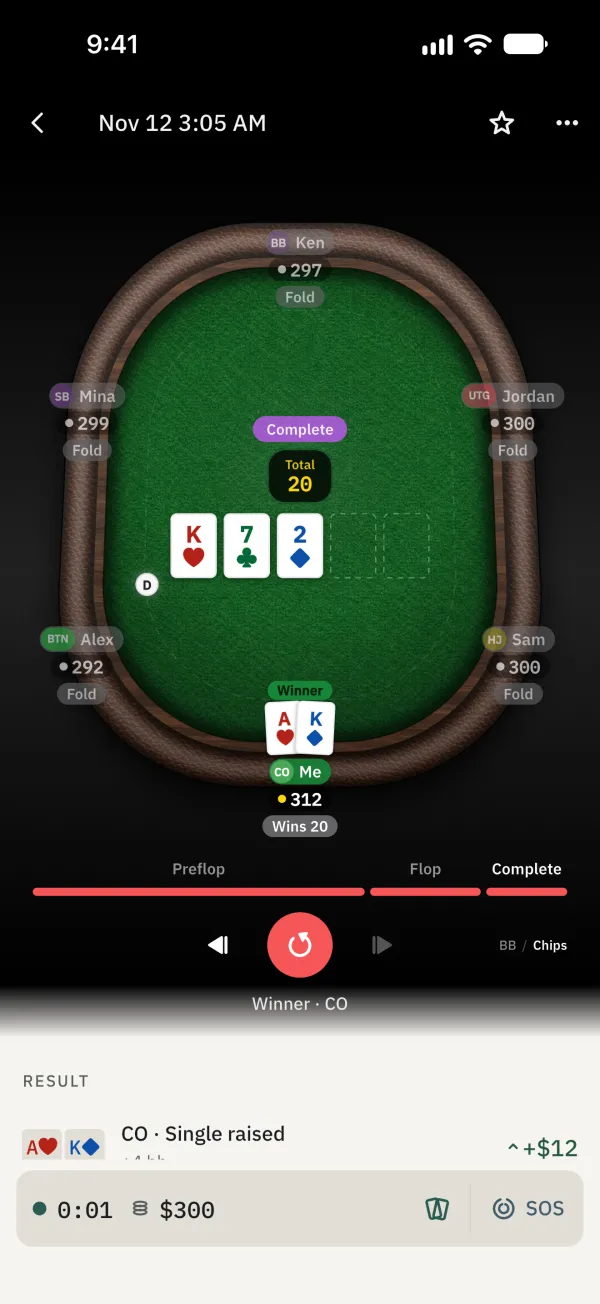
In Journal, choose Hands and tap a hand.
Tap the ⋯ menu at the top right.
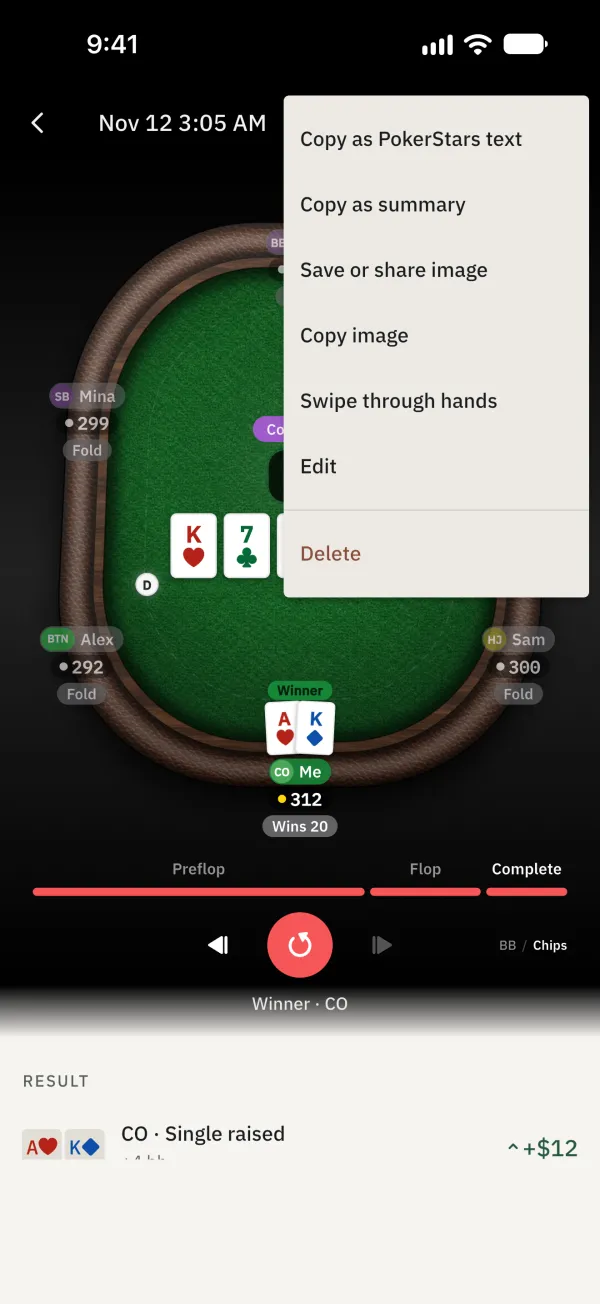
Choose Edit. A finished hand reopens in the recorder if it has a compatible recorder draft. Otherwise it opens in the manual builder.
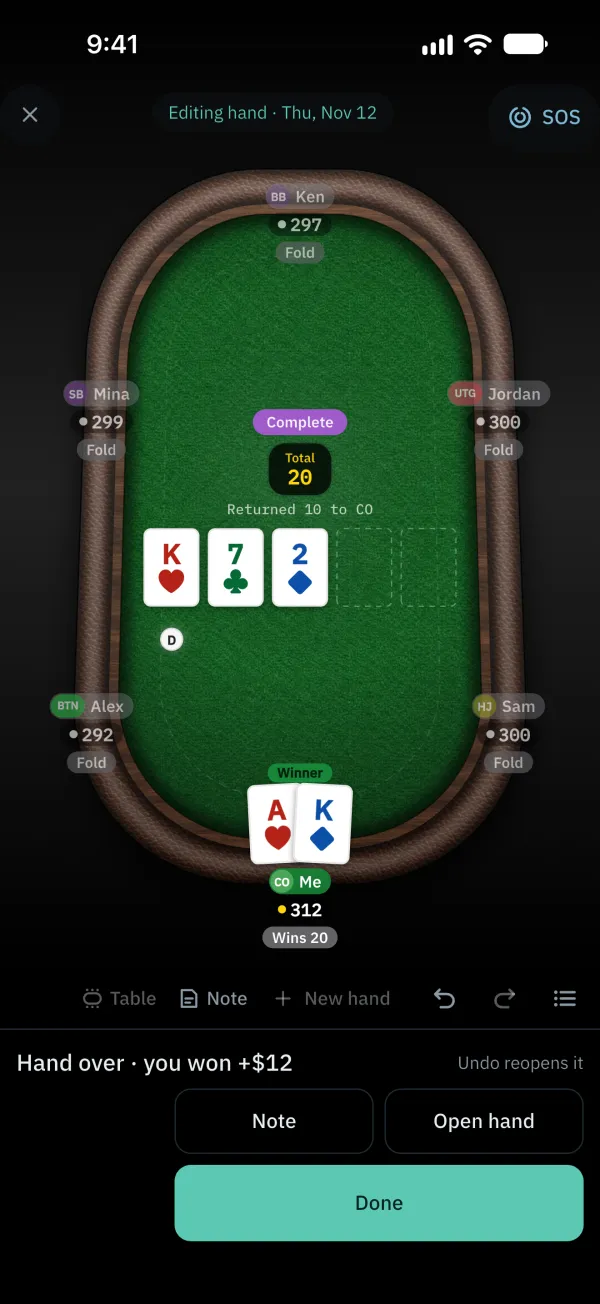
Use undo to return to the action you want to change.
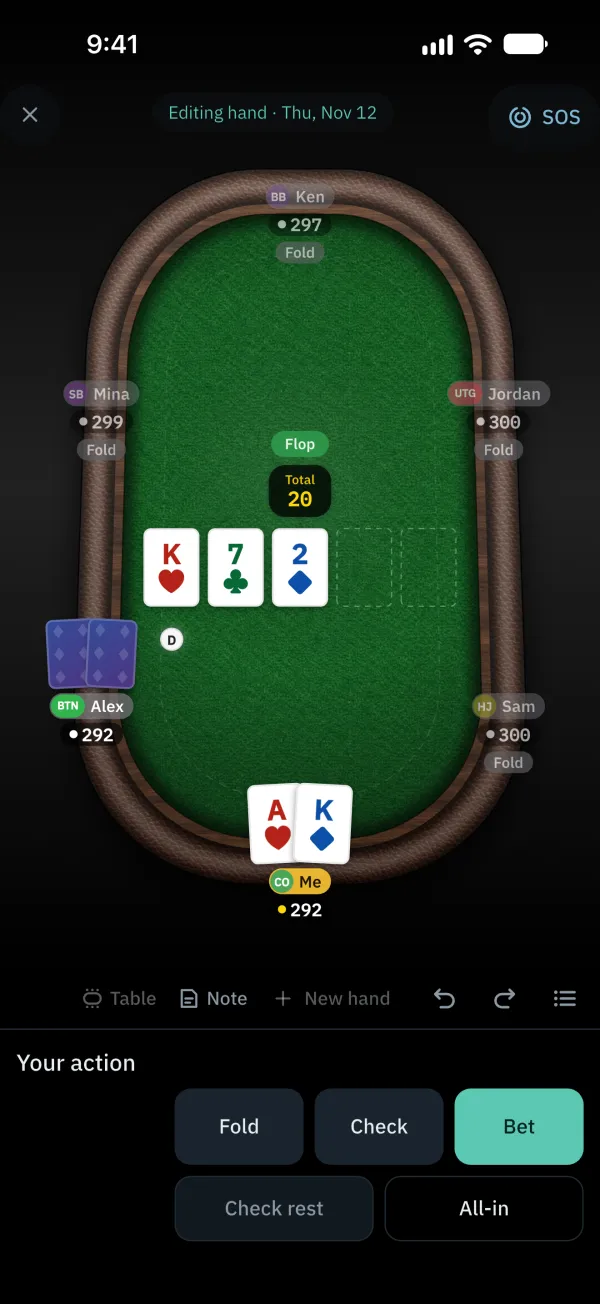
Re-enter the action and finish the hand.
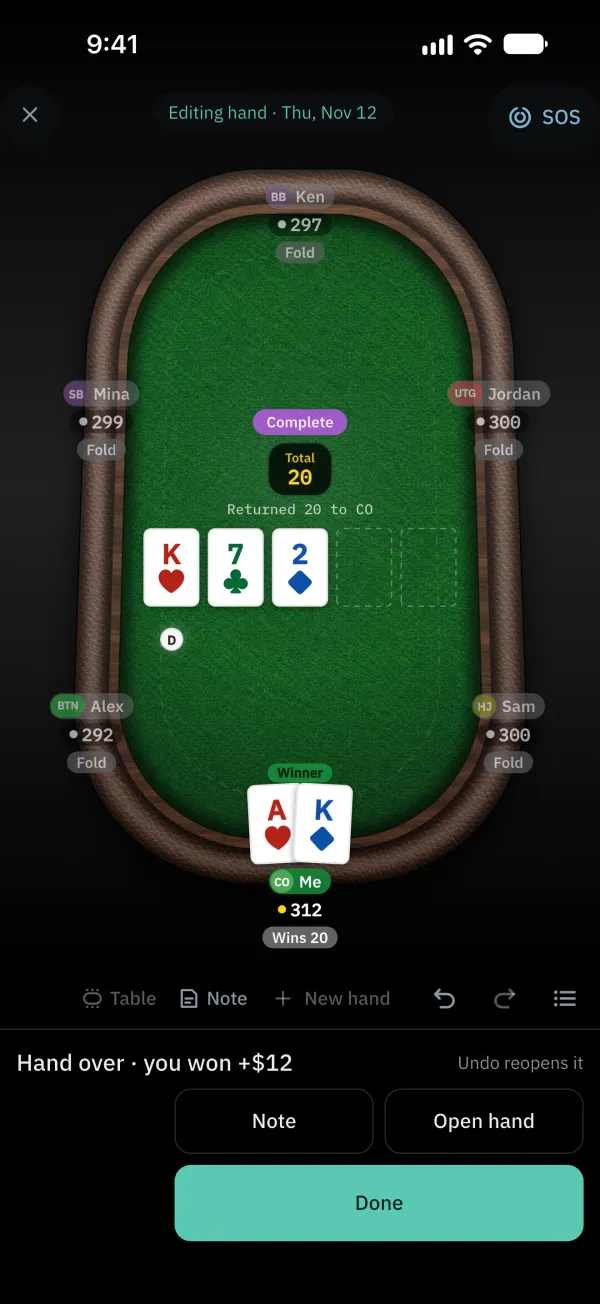
Tap Done to save and return to the hand. If you discard an unfinished edit, the saved hand stays as it was.
Tap Details, then use Add note or Add tag to add information.
Common problems
How do I continue an unfinished hand?
On its detail page, tap Unfinished. Continue recording.